
Mastering User Alarms in Fanuc Robotic Programming
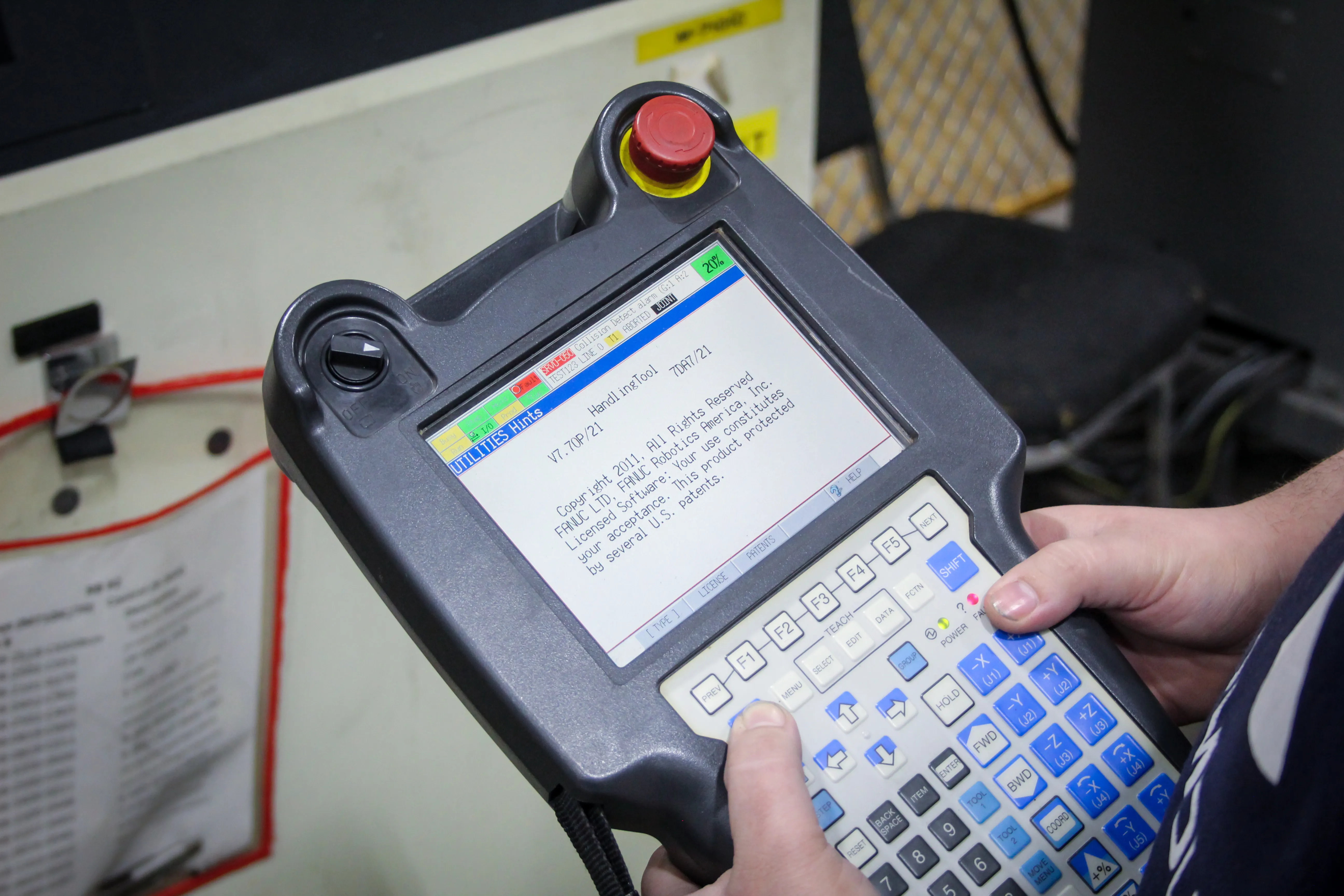
Hearing the sound of any alarm can bring almost instant dread. The high-pitched tone of a smoke alarm or the wail of a fire truck- all elicit their own sense of worry. Alarms also occur in the industrial world, typically meaning that some issues have arisen in the robotic systems used in manufacturing.
Operating Fanuc robots accurately is crucial in any manufacturing process that uses them, no matter the task. One common issue operators often face is dealing with run request failures and repeatedly using the FCTN (Function) Abort All command. This guide will show you how to set up and use user alarms to simplify this process, making your work smoother and more efficient. We'll cover setting up user alarms in Fanuc robotic systems, understanding their functions, and how they can improve your programming experience.
Knowing how to use the User Alarm screen allows you to define a message that will be displayed on the teach pendant status line. This message is displayed when a user alarm instruction is executed in a teach pendant program.
Understanding the Problem: Run Request Failures
Imagine you're running a job on your Fanuc robot and accidentally pick the wrong one. You hit start and forward, but the run request fails. Typically, you'd need to use the FCTN Abort All command, hit reset, and go through several steps to fix this. However, you can simplify this process with user alarms with a single button press.
Setting Up User Alarms
User alarms in Fanuc robots can help safeguard your programs and automate specific responses to events. Here's a step-by-step guide to setting them up:
Note: By default, the severity of a user alarm is STOP, which pauses the program and stops robot motion. If you want to change the severity of the user alarm, you must set the appropriate $UALRM_SEV[n] system variable to a value that corresponds to the severity you want. "n" corresponds to the number of the user alarm.
Step 1: Accessing Variables
- Navigate to System: On your teach pendant, go to the system menu.
- Select Variables: Enter the variables section to set up your user alarms.
Steps
1. Press MENU.
2. Select SYSTEM.
3. Press F1, [TYPE].
4. Select Variables. You will see a screen similar to the following
5. Move the cursor to $UALRM_SEV and press ENTER.
Step 2: Configuring User Alarms
- Find the UALRM Variables: Look for the UALRM message and UALRM severity in the variables list. Move the cursor to $UALRM_SEV and press ENTER.
- Set the Alarm Message: Click on the 10-string list for UALRM_message and input your desired message. For example, you could set a message like "Abort All."
- Set the Severity: Adjust the severity in UALRM severity to determine the alarm's impact. Type the number that corresponds to the severity you want and press ENTER. The severity levels range from 0 (no action) to combinations that pause, stop, or abort programs and motion.
Severity Levels and Their Effects
- 0: No action.
- 2: Pauses the program.
- 3: Aborts with an error.
- 4: Stops any program motion.
- 6: Pauses the program and stops motion.
- 8: Cancels program motion.
- 10: Pauses the program and cancels motion.
- 11: Aborts the program and cancels motion.
- Adding 16: Turns off all servos.
- Adding 32: Applies action to all programs and motions.
- Adding 64: Requires a cold start to reset the controller.
Implementing User Alarms in Your Program
You need to integrate user alarms into your robotic programming to use them effectively. Here's how:
Creating a Macro for User Alarms
- Create a New Job: Go to the job creation menu and select "Create."
- Set Job Details: Change the group mask to a star (*) to ensure it's a non-motion job. This setup allows you to call the macro without affecting motion.
- Add the Alarm Instruction: In the job, go to instruction > miscellaneous > UALM[x]. Select the user alarm number you set up.

For example: INTP 213 UALM[1] Check feeder (RSR001, 47)
Running the User Alarm
- Run the Macro: Execute the job with the user alarm command to see it in action. For example, if you programmed UALARM number 1, running the job should trigger the user alarm as configured.
- Assign to User Key: Go to setup > macros and assign your new job to a user key for easy access. This lets you trigger the user alarm with a single button press.
Note: If the program is resumed, program execution will continue from the next program line. The user alarm instruction specifies the alarm message to be displayed. Refer to the “General Setup” chapter of the Setup and Operations Manual for information on how to define the contents of a user alarm.
Practical Applications
Example: Abort All Programs and Cancel Motion
- Combine Severity Levels: Combine the severity levels to abort all programs and cancel all motion. For instance, using a severity of 11 aborts the program and cancels motion.
- Set the User Alarm: Configure the user alarm with severity 11 and assign it to a job.
- Trigger the Alarm: Use the assigned user key to trigger the alarm whenever necessary.
Example: Warning Messages
- Set a Warning: Configure a user alarm with a severity of 0 for non-critical warnings.
- Display the Message: Set the UALRM message to something like "Check Settings" to alert operators without stopping the program.
- Run the Job: Use the job with the user alarm to display the warning message when specific conditions are met.
User Alarms Help Avoid User Error and Optimize Operations
Mastering user alarms in Fanuc robotic programming can streamline your workflow, enhance safety, and improve overall efficiency. Whether you are dealing with run request failures or need automated responses to specific events, user alarms offer a powerful tool to enhance your robotic operations.
For more information on Fanuc robots’ user alarms, troubleshooting tips, and detailed guides, contact the experts at T.I.E. Industrial today. In addition to our extensive inventory of refurbished Fanuc replacement parts, our technicians can help guide you in making the right choices to keep your robots running at peak performance.
By implementing the strategies outlined in this guide and relying on the parts, knowledge, and support from T.I.E Industrial, you'll be well-equipped to handle any challenges that come your way, making your work with Fanuc robots more effective and hassle-free.
Contact us today for expert support!
Related Articles
You might be also interested in:

- Manufacturers
Understanding Error Codes in Fanuc Industrial Robots
As modern industries evolve, the role of robots in manufacturing and automation has become much more integral in operations. Companies rely heavily on this technology and cannot afford shutdowns in production if this sophisticated machinery relays errors. Understanding Fanuc robot error codes is crucial for maintaining productivity and ensuring safety in your manufacturing environment. Let’s explain some common Fanuc error codes, their meanings, and potential solutions to minimize or avoid downtime.
- Manufacturers
- Robot Motors
Addressing Common Fanuc Robot Motor Failures: How to Diagnose
No manufacturer wants to experience downtime caused by a failed robot motor. When a motor stops performing as expected, production can come to a standstill, impacting schedules, quality, and overall productivity. While Fanuc robots are built for reliability, their motors operate under demanding conditions, making them susceptible to predictable wear patterns and electrical or mechanical stress.
- Manufacturers
Top of the Line: Fanuc Deburring Robots
Fanuc has been in the robotic industry for years, so it is no surprise that they are creating best in class robots such as the LR Mate 200iC robot. The LR Mate 200iC by Fanuc can locate and deburr a part using the optional iRVision and an FS-10iA Force Sensor. Furthermore, the Fanuc 200iC has a great wrist load capacity, repeatability, work envelope, and speed.
- Manufacturers
Robotic Revolution: How Fanuc Robots Put Thanksgiving Dinner on Your Table
Thanksgiving – a time for feasting and gratitude. Behind the scenes, Fanuc robots play a pivotal role in bringing this festive meal to your table. At T.I.E. Industrial, we provide refurbished Fanuc robots that are integral to this process. This blog will delve into the various applications of these robots in Thanksgiving food preparation and the importance of food-grade robotics.
- Manufacturers
Fanuc Collaborative Robots: The Mini Series
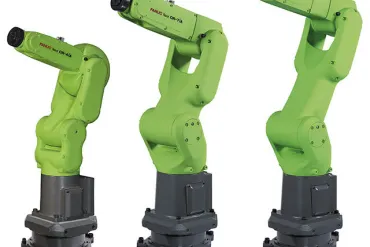
Fanuc now offers a collaborative mini-series with the CR-4iA, the CR-7iA, and the CR-7iA/L extended reach. Collaborative robots can work side by side with human workers without the need for any safety fencing. Furthermore, they are small and flexible, saving you on floor space and money. Contact Robots.com experts today to start the integration of a Fanuc collaborative robot from the mini series.
- Manufacturers
Thriving in Tough Terrain: Refurbished Fanuc Robots in Hazardous Environments
In the industrial world, conquering hazardous environments and challenging terrains is an everyday endeavor. From extreme temperatures to exposure to harmful chemicals or confined spaces, precision, safety, and efficiency are paramount. This blog will explore how refurbished Fanuc robots serve as the ultimate solution for these demanding conditions. We will also delve into some typical hazardous environments and applications where these robots shine, providing valuable insights into their remarkable versatility, along with various model numbers.